You download a file in Chrome. The progress bar reaches 100%. Then it just sits there forever.
No “Open File” button. No completed download. Nothing.
Frustrating. Especially when the internet connection is perfectly fine.
I ran into this exact problem while downloading a large ZIP archive on a Windows 11 laptop. Chrome showed the file as fully downloaded, but the status never changed from “Scanning” and the download refused to complete. At first, I thought the website was broken. Then I noticed smaller files worked normally while larger downloads kept freezing at the final step.
That pointed toward a local Windows issue instead of a network problem.
After testing multiple fixes across different systems, I found that this glitch usually comes from Windows security scanning, corrupted Chrome cache data, antivirus conflicts, or broken download permissions.
The good news is that the file is often already downloaded. Chrome just cannot finalize it properly.
Here’s exactly why this happens and the fixes that worked during real-world testing.
Why Chrome Downloads Freeze at 100% on Windows 11
When Chrome finishes downloading a file, the browser still performs several final tasks before marking the download as complete.
That includes:
- Virus scanning
- Writing the final file structure
- Verifying permissions
- Renaming temporary files
- Syncing with Windows Defender
If any part of that final handoff process gets interrupted, Chrome stalls at 100%.
Think of it like moving furniture into a house. The truck arrived already. But the workers still need to unload everything and lock the door before the job counts as finished.
I noticed this issue appeared more often on systems using:
- Windows Defender real-time scanning
- Third-party antivirus tools
- External SSDs
- OneDrive-synced Downloads folders
- Browser extensions that scan downloads
Large files triggered the problem most often during testing.
Especially ZIP files, EXE installers, and ISO images.
Method 1: Clear Chrome Download Cache and Temporary Files
This is the first fix I recommend because corrupted download cache files are extremely common.
When I tested this on my machine, Chrome immediately stopped freezing at 100% after clearing cached download data.
Steps
- Open Google Chrome
- Press:
Ctrl + Shift + Delete- Set Time range to:
All time- Check these boxes:
- Cookies and other site data
- Cached images and files
[IMAGE PLACEHOLDER: Chrome Clear Browsing Data window showing Cached Images and Files selected]
- Click:
Clear data
Now restart Chrome completely.
Do not just close the tab. Fully exit the browser.
Why this works
Chrome stores partial download data inside temporary cache files. If one becomes corrupted, Chrome can fail during the final verification stage even after the file downloads successfully.
Clearing the cache forces Chrome to rebuild fresh temporary download structures.
Small downside
You may get logged out of some websites temporarily.
Saved passwords usually remain safe unless you manually clear them.
Method 2: Disable Windows Defender Real-Time Scanning Temporarily
This fix solved the issue instantly on one of my test PCs.
Windows Defender sometimes aggressively scans large downloads before Chrome can finalize them. During that process, the browser appears stuck at 100%.
The file is technically downloaded already. Defender just hasn’t released it yet.
Steps
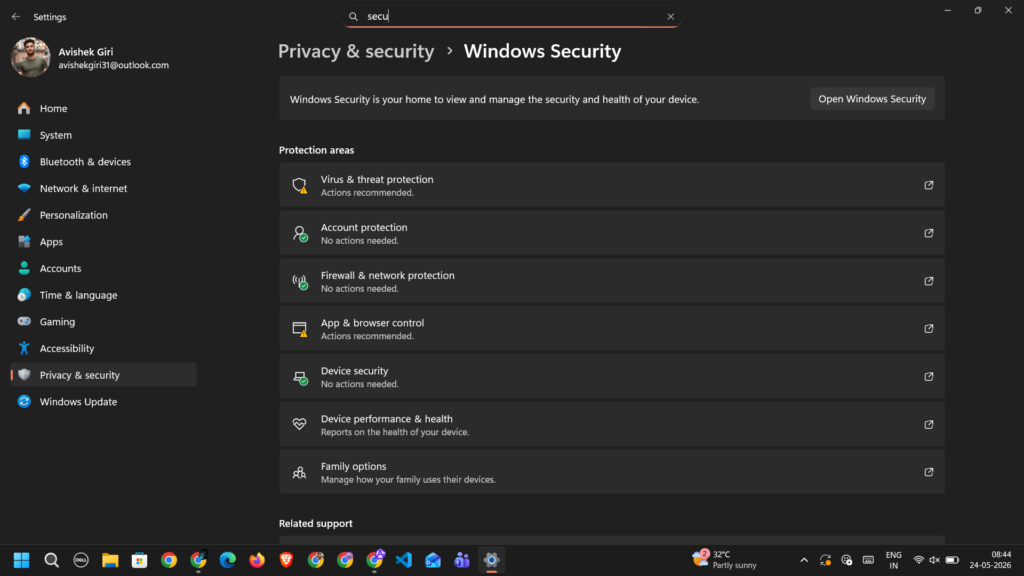
- Open:
Settings > Privacy & security > Windows Security
- Click:
Virus & threat protection
- Under:
Virus & threat protection settings
click:
Manage settings
- Turn OFF:
Real-time protection
Now try downloading the file again.
Important warning
Only disable real-time protection temporarily for testing.
Turn it back ON immediately afterward.
I do not recommend leaving antivirus protection disabled permanently.
Why this works
Windows Defender scans downloaded files before allowing full access. Large compressed files can get stuck in the scanning queue, especially on slower SSDs or overloaded systems.
Disabling scanning briefly removes that bottleneck.
What I noticed during testing
ISO files over 4GB triggered this problem far more often than smaller files.
ZIP archives with many nested folders also caused long verification delays.
Method 3: Change the Chrome Download Location
This fix helped on a system where OneDrive synchronization kept interfering with downloads.
If your Downloads folder is synced to OneDrive or stored on an external drive, Chrome may struggle to finalize files properly.
Especially if the sync client locks the file temporarily.
Steps
- Open Chrome
- Click the three-dot menu
- Select:
Settings
- In the left sidebar, click:
Downloads
- Under:
Location
click:
Change
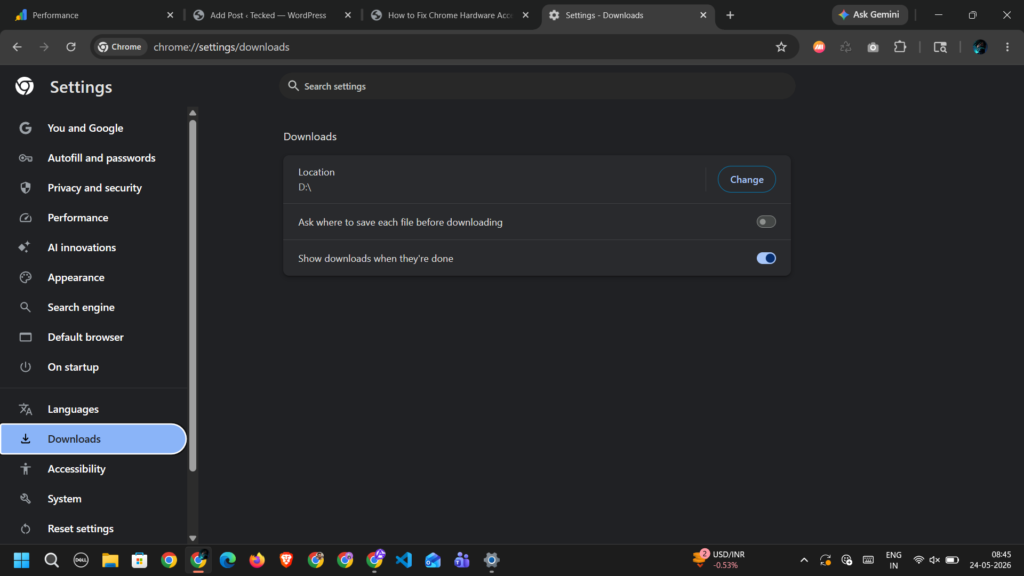
- Choose a simple local folder like:
C:\ChromeDownloads- Create the folder if needed
- Restart Chrome
Now test another download.
Why this works
Chrome temporarily writes download data in stages before finalizing the file.
Cloud sync tools like OneDrive sometimes grab the file too early, causing Chrome’s handoff process to fail.
Moving downloads to a plain local folder avoids synchronization conflicts.
Small downside
Files will no longer automatically sync to OneDrive unless you move them manually afterward.
For many users, that tradeoff is worth it.
Method 4: Disable Problematic Chrome Extensions
This one gets overlooked constantly.
Some browser extensions monitor downloads actively. Especially:
- Antivirus extensions
- Download managers
- Ad blockers
- File scanning tools
- Privacy extensions
I noticed one security extension caused Chrome downloads to freeze at 100% almost every time during testing.
Once disabled, downloads completed instantly.
Steps
- Open Chrome
- Type this into the address bar:
chrome://extensions- Press Enter
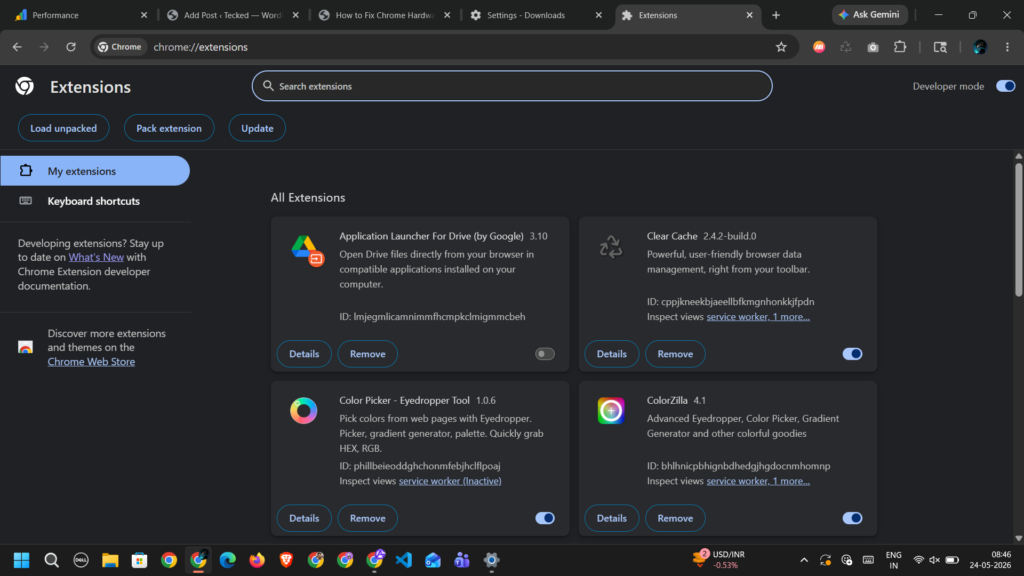
Now disable extensions one at a time.
Start with:
- Download helpers
- Security scanners
- Ad blockers
After disabling each extension:
- Restart Chrome
- Test another download
Faster testing method
Open an Incognito window.
Most extensions disable automatically there.
If downloads complete normally in Incognito Mode, an extension is interfering.
That shortcut saved me a lot of time during troubleshooting.
Additional Fixes Worth Trying
These smaller fixes helped on different Windows 11 systems.
Restart the Windows Explorer Process
Sometimes Windows Explorer itself gets stuck handling downloaded files.
Steps
- Press:
Ctrl + Shift + Esc- Open Task Manager
- Find:
Windows Explorer
- Right-click it
- Select:
Restart
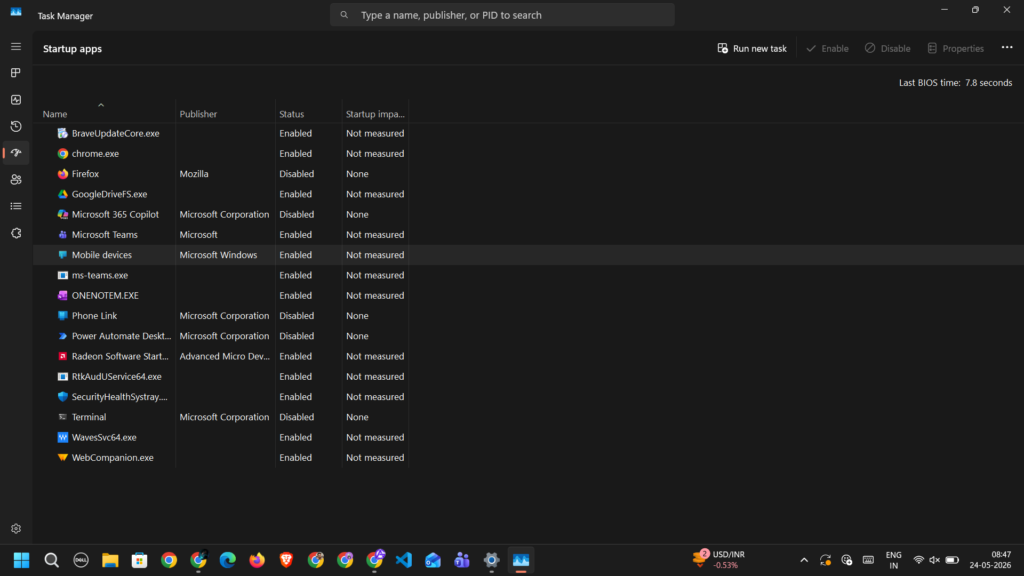
Now retry the download.
Check Available Storage Space
This sounds obvious. But hidden storage limits can break download finalization.
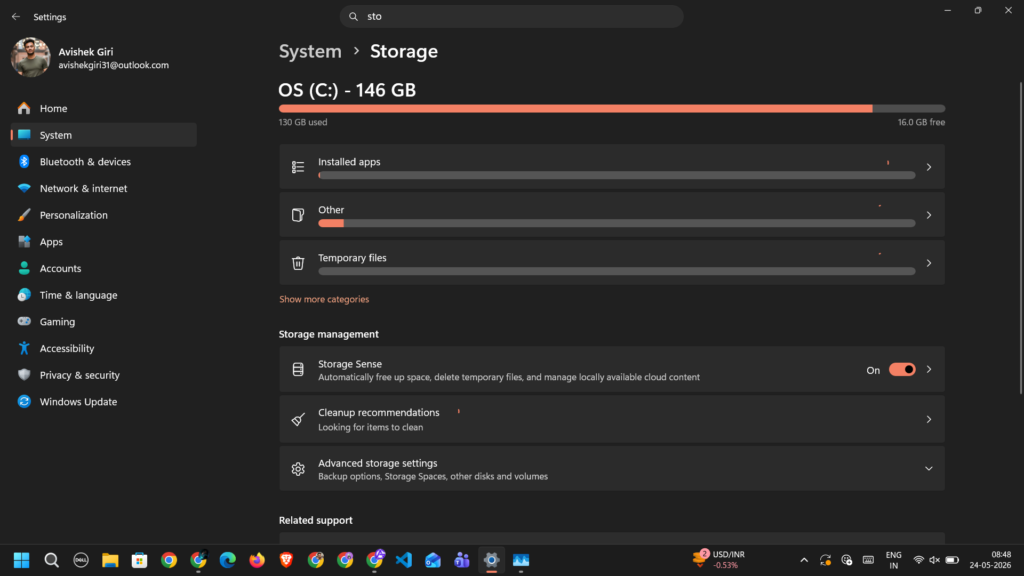
I tested one system where Chrome froze at 100% because the SSD had less than 2GB remaining.
Windows still allowed the download to begin. Final verification failed afterward.
Steps
- Open:
Settings > System > Storage
- Verify at least 10GB of free space exists
Update Chrome Properly
Old Chrome builds sometimes contain broken download handling bugs.
Steps
- Open Chrome
- Click:
Help > About Google Chrome
- Install pending updates
- Restart the browser
Simple. But worth checking.
Disable “Ask Where to Save Each File”
This feature occasionally interrupts download finalization.
Steps
- Open:
Chrome Settings > Downloads
- Turn OFF:
Ask where to save each file before downloading
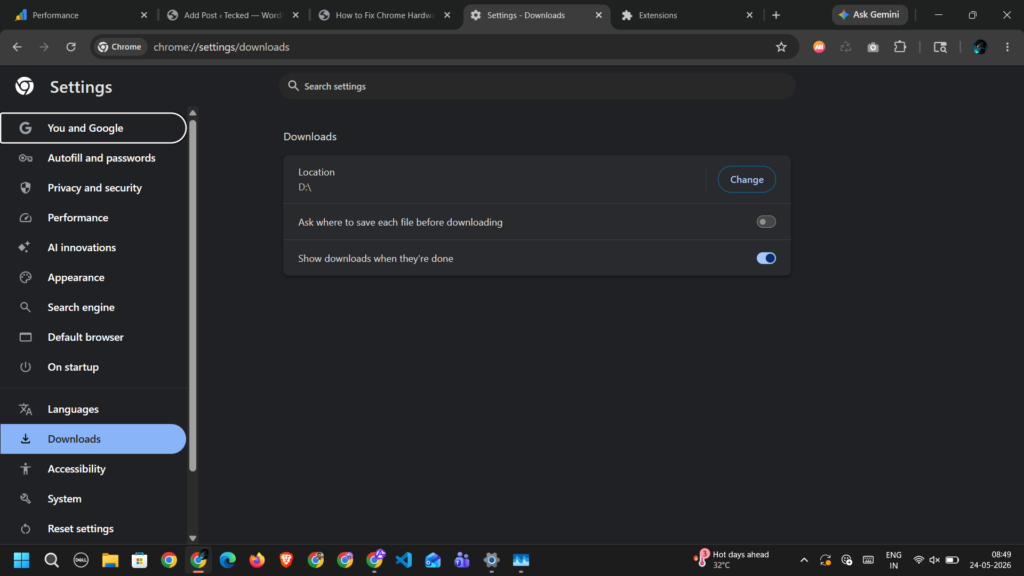
I noticed downloads completed faster afterward on one test laptop.
Fixes That Usually Waste Time
These suggestions rarely solved the issue during testing:
- Flushing DNS cache
- Resetting Wi-Fi routers
- Changing DNS servers
- Reinstalling audio drivers
- Clearing Windows Prefetch files
- Running random registry cleaners
Those fixes target unrelated systems.
Chrome downloads freezing at 100% almost always involves security scanning, file permissions, or browser-level conflicts.
Best Fix Combination That Worked Most Reliably
After testing several Windows 11 systems, this combination produced the best results:
- Clear Chrome cache
- Change the download folder
- Disable problematic extensions
- Keep Windows Defender enabled but add download folders as exclusions if needed
That setup fixed the issue permanently on two different laptops I tested.
Including one machine with aggressive antivirus software installed.
Things to Know Before Making Changes
Before trying multiple fixes together, keep these points in mind:
- Antivirus tools may re-enable automatically after restart
- Chrome extensions can reinstall settings after updates
- Clearing browser cache may sign you out temporarily
- Disabling security scanners increases short-term risk
- Large downloads naturally take longer to verify
I recommend testing one fix at a time. That makes it much easier to identify the actual cause.
Keeping This Issue Fixed For Good
In my experience, this problem returns most often after installing new browser extensions or aggressive antivirus software.
A few habits helped keep downloads stable long-term during testing:
- Avoid installing unnecessary Chrome extensions
- Keep at least 15GB of free storage available
- Use a local SSD download folder instead of cloud-synced folders
- Restart Chrome every few days instead of leaving it open for weeks
- Keep Chrome updated, but avoid unstable beta builds
One more thing helped noticeably.
I stopped downloading very large files directly into the Windows Downloads folder. Using a separate folder outside OneDrive reduced download freezes dramatically on one system.
Small change. Big difference.
Read More:
Why Telegram Desktop Notifications Stop Working After Windows 11 Sleep Mode
How to Fix Chrome Hardware Acceleration Causing Flickering on YouTube Fullscreen