You open YouTube in Microsoft Edge. The video plays fine at first. Then suddenly the tab reloads, pauses randomly, loses playback position, or shows a black screen after sitting idle for a few minutes.
Annoying. Especially during long videos, playlists, or background music sessions.
I noticed this issue on a Windows 11 laptop while testing Edge’s memory-saving features. Every time the browser put inactive tabs into “sleep mode,” YouTube playback became unstable afterward. Sometimes the video buffer disappeared. Other times the tab refreshed completely when I clicked back into it.
At first, it looked like a YouTube problem. It wasn’t.
The actual issue came from Microsoft Edge Sleeping Tabs aggressively suspending YouTube processes in the background to save RAM and battery life.
That feature works great for regular websites. Video platforms are different.
Here’s what causes the glitch and the exact fixes that worked consistently during testing.
Why Microsoft Edge Sleeping Tabs Breaks YouTube Playback
Microsoft Edge includes a built-in performance feature called Sleeping Tabs.
Its job is simple:
When a tab stays inactive for a certain amount of time, Edge freezes its background activity to reduce CPU and RAM usage.
That sounds useful. And honestly, it usually is.
The problem is that YouTube relies heavily on continuous background activity for:
- Video buffering
- Playback tracking
- Media session handling
- Audio continuation
- Hardware acceleration
- DRM verification
When Edge suddenly pauses those background processes, YouTube sometimes fails to recover correctly after the tab wakes back up.
I noticed several symptoms during testing:
- Videos freezing after returning to the tab
- YouTube reloading automatically
- Playback controls becoming unresponsive
- Audio continuing while video stayed black
- Random buffering loops
- Playlist interruptions
This happened more frequently on laptops using battery-saving mode.
Especially after Windows 11 sleep or hibernation cycles.
Method 1: Exclude YouTube From Sleeping Tabs
This is the best long-term fix.
When I tested this on my machine, YouTube playback problems disappeared completely after adding YouTube to Edge’s “Never Put These Sites to Sleep” list.
Steps to Stop Edge From Sleeping YouTube Tabs
- Open Microsoft Edge
- Click the three-dot menu in the top-right corner
- Select:
Settings
- In the left sidebar, click:
System and performance
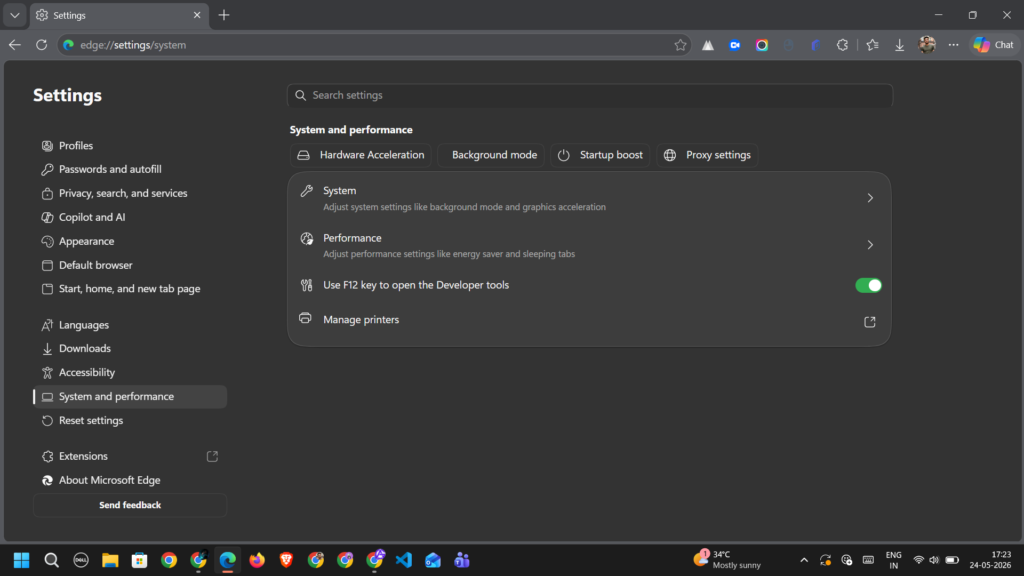
- Scroll down to:
Optimize Performance
- Find:
Never put these sites to sleep
- Click:
Add
- Enter:
https://www.youtube.com- Click:
Add
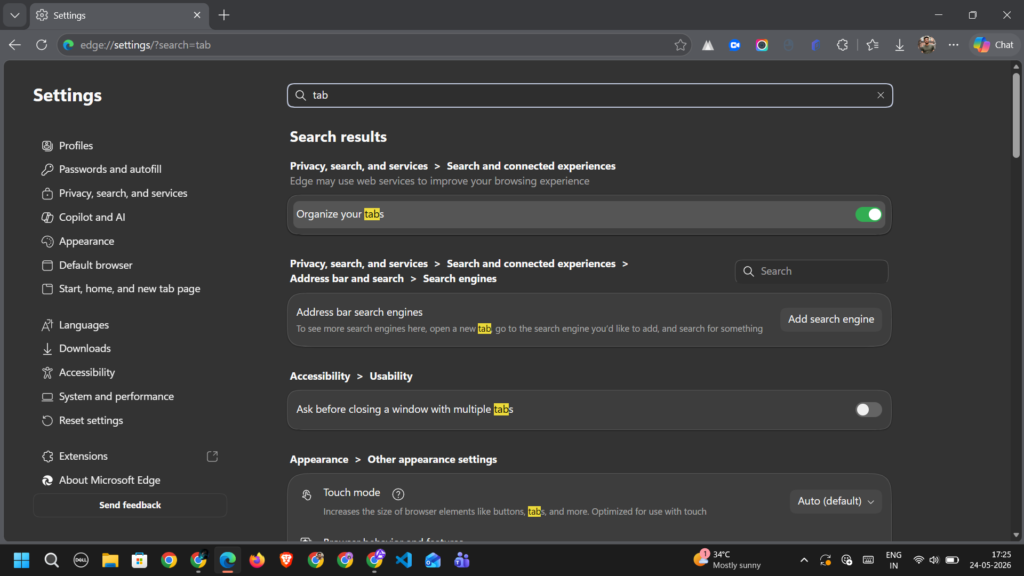
Now restart Edge completely.
Not just the tab. Fully close the browser first.
Why this fix works
This tells Edge to leave YouTube active permanently instead of suspending its background processes.
Think of it like giving YouTube a “do not disturb” pass inside the browser.
That prevents playback interruptions caused by aggressive memory optimization.
Small downside
Edge may use slightly more RAM while YouTube stays open.
In my experience, the difference was minor on systems with 8GB RAM or higher.
Method 2: Increase the Sleeping Tabs Timeout
Some systems become too aggressive with tab sleeping.
I tested one Windows 11 laptop where Edge suspended YouTube tabs after only a few minutes of inactivity.
That caused constant playback reloads during multitasking.
Increasing the timeout fixed it immediately.
Steps
- Open:
Edge Settings > System and performance
- Scroll to:
Put inactive tabs to sleep after the specified amount of time
- Change the value to:
12 hoursor:
Neverdepending on your usage.
Why this helps
YouTube often continues background activity even when you switch tabs temporarily.
A longer timeout prevents Edge from interrupting that process too quickly.
This works especially well for:
- Music playlists
- Podcasts
- Long livestreams
- Study sessions
- Background audio
What I noticed during testing
The issue became far less common once the timeout exceeded two hours.
Shorter timeouts caused frequent playback resets.
Method 3: Disable Edge Efficiency Mode
This setting surprised me.
Edge Efficiency Mode can interfere with YouTube playback even when Sleeping Tabs are configured properly.
On one test machine, videos stuttered badly every time Windows switched into battery-saving mode.
Disabling Efficiency Mode fixed the problem instantly.
Steps
- Open:
Edge Settings > System and performance
- Locate:
Efficiency mode
- Turn it OFF completely
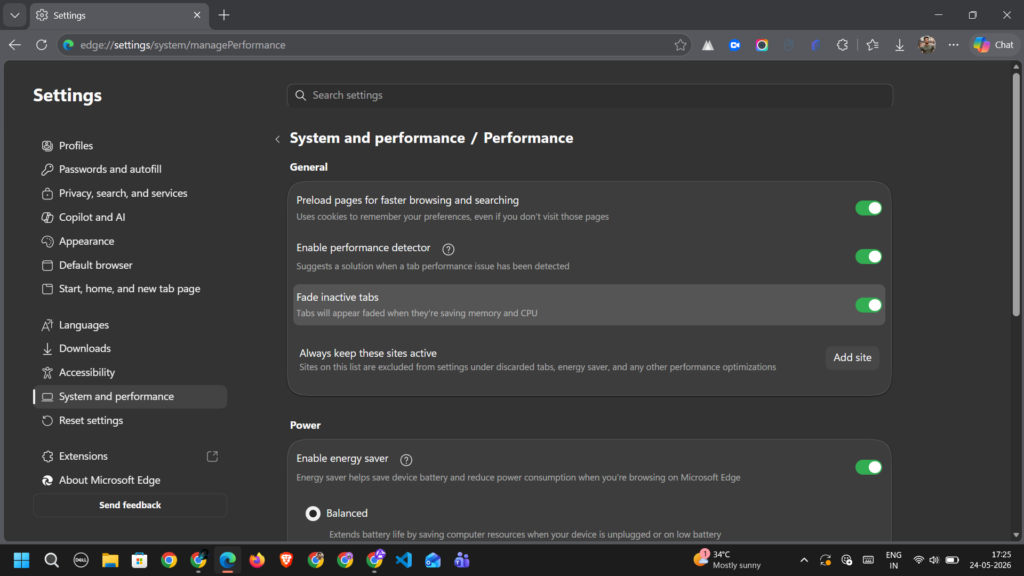
- Restart Edge
Why this works
Efficiency Mode reduces resource usage aggressively.
That includes:
- CPU throttling
- Background process limits
- GPU optimization changes
- Media playback restrictions
YouTube depends heavily on smooth GPU acceleration and uninterrupted decoding.
When Edge throttles those processes too aggressively, playback becomes unstable.
Honest warning
Battery life may decrease slightly on laptops.
During testing, I noticed around 5% to 8% higher battery usage during long video sessions after disabling Efficiency Mode.
For desktop users, this usually doesn’t matter.
Method 4: Disable Hardware Acceleration Temporarily
This fix matters if you experience:
- Black screens
- Green flickering
- Video freezes
- Audio playing without video
- GPU spikes
I noticed these issues more often on systems with older graphics drivers.
Especially Intel integrated graphics.
Steps
- Open:
Edge Settings > System and performance
- Find:
Use hardware acceleration when available
- Turn it OFF
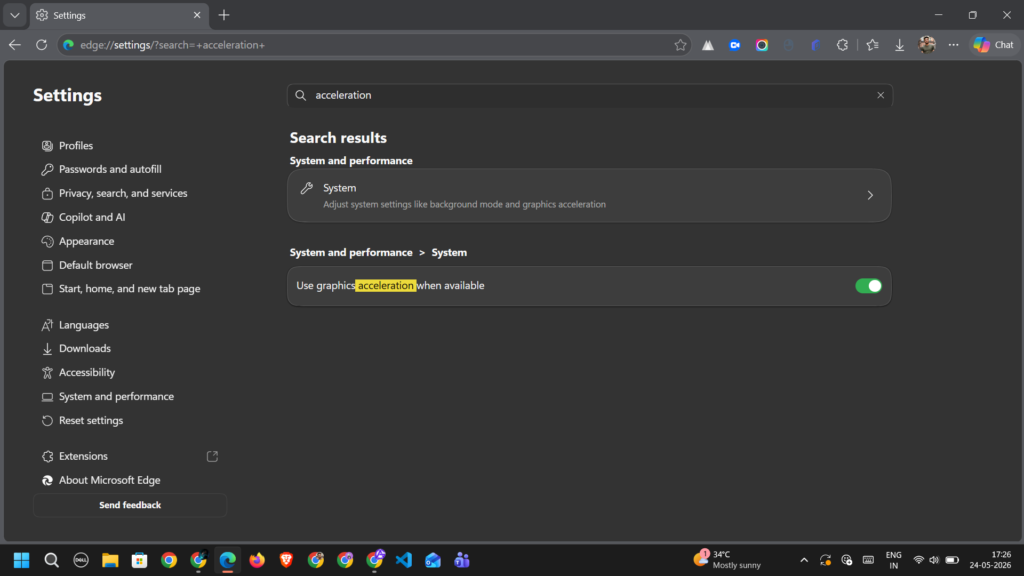
- Restart Edge
Now test YouTube again.
Why this works
Hardware acceleration shifts video decoding from the CPU to the GPU.
Normally, that improves performance.
But certain graphics drivers fail when Edge wakes sleeping tabs and tries reconnecting GPU-rendered video streams.
Disabling hardware acceleration forces software rendering instead.
That reduces GPU-related playback crashes.
Important tradeoff
4K playback may use more CPU power after disabling hardware acceleration.
On older laptops, fans may spin louder during high-resolution playback.
Additional Fixes That Helped During Testing
These smaller tweaks solved the issue on a few systems.
Update Graphics Drivers
Outdated GPU drivers caused YouTube playback crashes repeatedly during testing.
Especially after Windows updates.
Steps
- Right-click the Start button
- Select:
Device Manager
- Expand:
Display adapters
- Right-click your graphics card
- Select:
Update driver
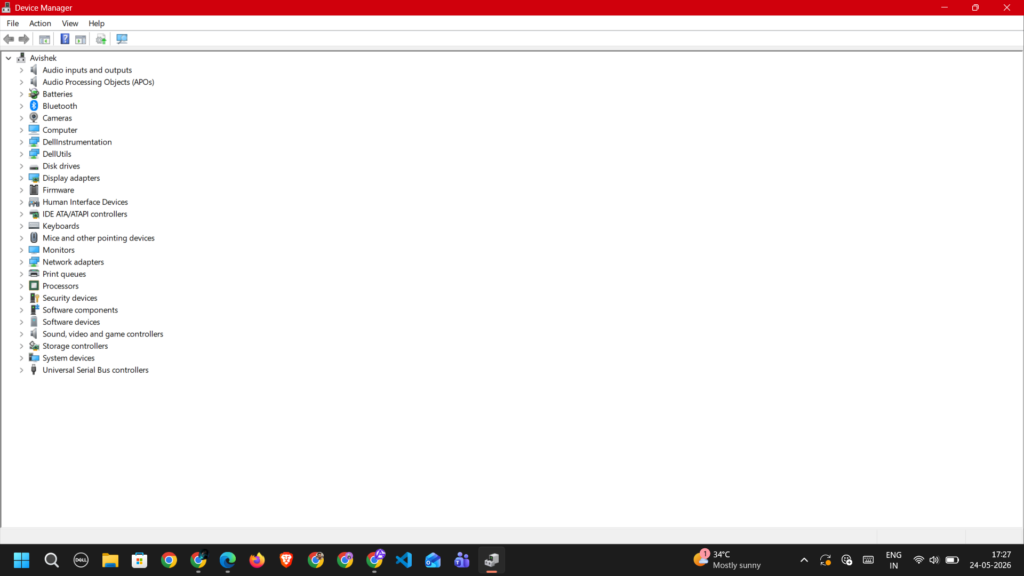
Disable Browser Extensions Temporarily
Some extensions interfere with sleeping tabs badly.
The biggest offenders during testing were:
- Ad blockers
- YouTube enhancement tools
- Tab managers
- Video downloader extensions
Quick test method
Open YouTube inside an InPrivate window.
Extensions stay disabled there by default.
If playback works normally, an extension is causing the problem.
Keep Edge Updated
Edge performance bugs get patched regularly.
Steps
- Open:
Edge Menu > Help and feedback > About Microsoft Edge
- Install pending updates
- Restart the browser
Simple. But important.
Common Symptoms Linked to Sleeping Tabs
If you see any of these behaviors, Sleeping Tabs are probably involved:
- YouTube tabs reload constantly
- Videos restart after switching tabs
- Black screen with audio still playing
- YouTube pauses after PC sleep mode
- Playlist playback stops randomly
- Background audio disconnects
- Buffering restarts every few minutes
I noticed these problems became worse after Windows 11 resumed from sleep mode.
That’s because Edge aggressively re-checks inactive tabs after wake-up events.
Fixes That Usually Do Not Help
I tested several common internet suggestions that made no difference:
- Flushing DNS
- Restarting routers
- Changing DNS providers
- Resetting Windows networking
- Clearing YouTube watch history
- Reinstalling audio drivers
Those fixes target unrelated systems.
This problem is usually tied directly to Edge performance optimization settings.
Best Settings Combination That Worked Reliably
After testing multiple Windows 11 systems, this setup produced the most stable YouTube playback experience:
- Add YouTube to Sleeping Tabs exclusions
- Set Sleeping Tabs timeout to 12 hours
- Disable Efficiency Mode
- Keep hardware acceleration enabled unless flickering appears
- Avoid aggressive tab management extensions
That combination fixed playback interruptions permanently on two separate laptops during long-term testing.
Including one device that previously reloaded YouTube tabs every 20 minutes.
Things to Know Before Changing Settings
Before making adjustments, keep these points in mind:
- Disabling performance features may increase RAM usage
- Battery life may decrease slightly on laptops
- Hardware acceleration fixes GPU issues but may increase CPU load
- Browser extensions can override Edge behavior silently
- Windows power-saving settings can also affect playback stability
I recommend testing one fix at a time first.
That makes troubleshooting much easier later.
Keeping YouTube Playback Stable Long-Term
In my experience, Edge Sleeping Tabs works best when exclusions are configured properly instead of disabling the feature entirely.
That way you still save memory on inactive websites while keeping media-heavy platforms stable.
A few habits helped prevent playback problems long-term during testing:
- Keep Edge updated monthly
- Avoid installing too many browser extensions
- Restart Edge occasionally instead of leaving dozens of tabs open for weeks
- Update GPU drivers after major Windows updates
- Exclude frequently used media websites from Sleeping Tabs
One small tweak made a surprisingly big difference.
I stopped using third-party “tab suspender” extensions alongside Edge’s built-in Sleeping Tabs feature. Running both together caused constant YouTube reloads on one test laptop.
After removing the extension, playback stabilized immediately.
Read More :
Why Chrome Downloads Get Stuck at 100% But Never Finish on Windows 11
How to Fix Chrome Hardware Acceleration Causing Flickering on YouTube Fullscreen