
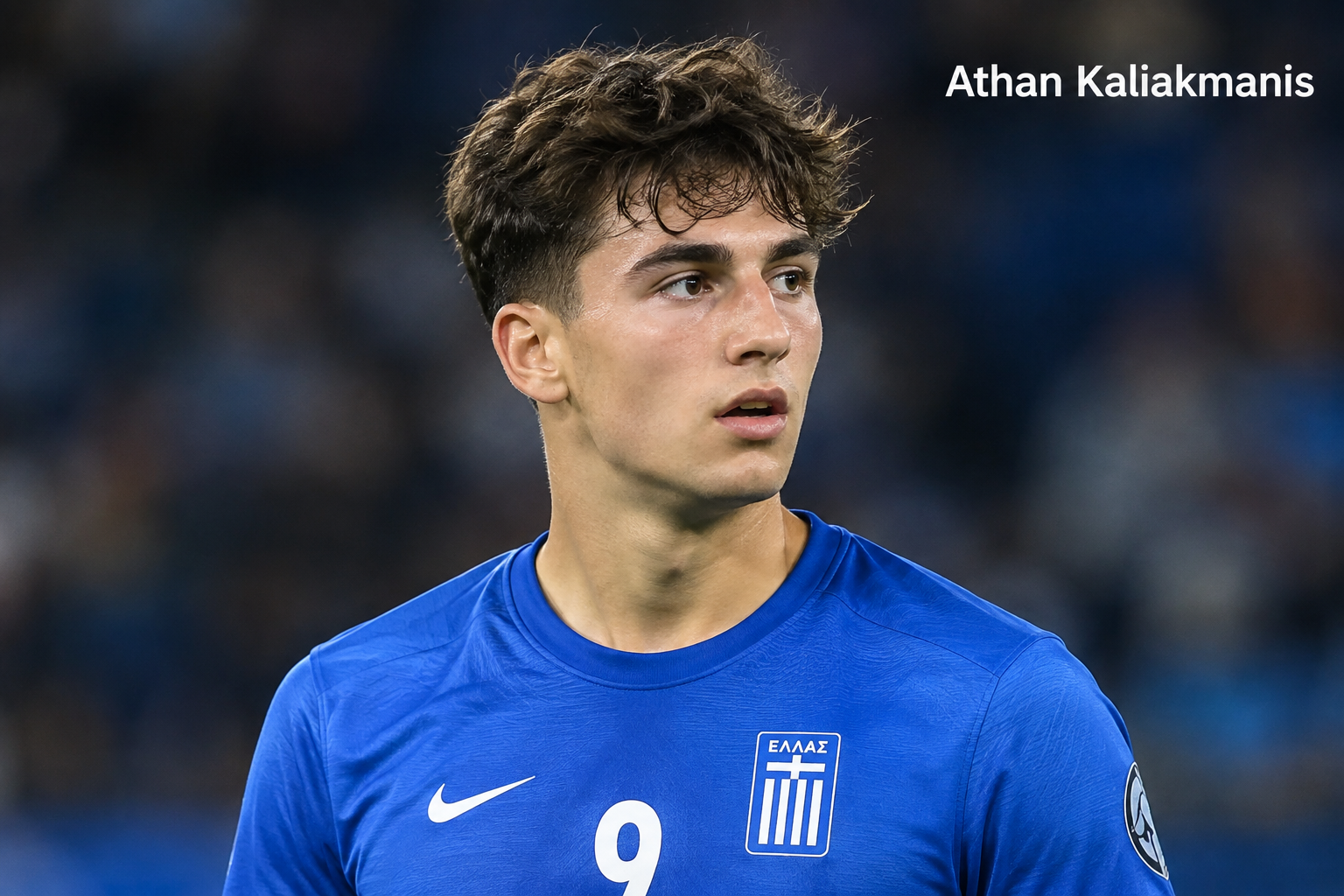
Who Is Athan Kaliakmanis?
Athan Kaliakmanis is an American football quarterback who entered the NFL after a five-season college career split between the Minnesota Golden Gophers and Rutgers Scarlet Knights. The Washington Commanders selected him with the 223rd overall pick in the seventh round of the 2026 NFL Draft, giving the young quarterback his opportunity to continue developing at the professional level. NFL.com’s scouting profile described Kaliakmanis as a quarterback who improved during his college career, with experience reading full-field progressions and making protection calls.
What makes Kaliakmanis interesting is the trajectory of his college career. He did not arrive in the NFL as a highly touted first-round quarterback, and his path was not perfectly smooth. Instead, his development came through experience, competition, changing systems, and a significant improvement during his two seasons at Rutgers. By the end of his college career, he had accumulated 8,604 passing yards and 55 touchdown passes, according to Sports-Reference’s college database.
That kind of background can make a quarterback particularly intriguing as a developmental prospect. The NFL is filled with players who enter the league without enormous draft-day expectations but gradually earn opportunities because they understand the position, process information quickly, and continue improving. Kaliakmanis now has the chance to prove that he can make that transition.
Athan Kaliakmanis at a Glance
Kaliakmanis entered the 2026 season as a rookie quarterback for Washington. The Commanders list him at 6-foot-2 and 216 pounds, while NFL.com lists him as an active member of Washington’s roster.
| Category | Detail |
|---|---|
| Position | Quarterback |
| NFL Team | Washington Commanders |
| Jersey | No. 16 |
| College | Rutgers |
| Draft | 2026 NFL Draft |
| Draft Pick | Round 7, No. 223 |
| College Career | Minnesota and Rutgers |
| College Passing Yards | 8,604 |
| College Passing TDs | 55 |
| Rutgers Passing Yards | 5,820 |
| Rutgers Passing TDs | 38 |
The numbers show a quarterback whose production accelerated as he gained experience. His Rutgers statistics are especially important because they represent the most recent stage of his development before entering the NFL.
Athan Kaliakmanis College Football Journey
Kaliakmanis’ college journey began at Minnesota, where he spent two seasons before transferring to Rutgers. That move ultimately became a major turning point in his career because his production increased considerably after arriving in New Jersey. Across his two seasons at Minnesota, he threw for 2,784 yards and 17 touchdowns. At Rutgers, those numbers jumped to 5,820 passing yards and 38 touchdowns in two seasons.
The progression is easier to understand when you look at the seasons individually. In 2022, his first college season, Kaliakmanis completed 60 of 111 passes for 946 yards and three touchdowns. A year later, he took a major step forward, completing 156 of 294 attempts for 1,838 yards and 14 touchdowns. That second season provided evidence that he could handle a larger role and produce more consistently.
His decision to transfer to Rutgers gave him another opportunity to establish himself. Rather than simply remaining a quarterback with potential, he became the centerpiece of Rutgers’ passing attack. Over the next two years, he started all 25 games for the Scarlet Knights and finished his Rutgers career ranked highly in several major statistical categories. Rutgers reported that he left the program ranked seventh in career passing yards, completions, attempts, passing touchdowns, and total offense.
Early Years at Minnesota
Kaliakmanis’ Minnesota experience gave him something every young quarterback needs: actual game experience. His freshman season involved limited production compared with what came later, but it gave him a foundation for understanding college football at the Big Ten level. He completed 54.1% of his passes for 946 yards and three touchdowns in 2022.
The following year was much more productive. Kaliakmanis played in 12 games and threw for 1,838 yards with 14 touchdowns and nine interceptions. His passing volume increased dramatically, and he became more familiar with operating an offense against Big Ten competition. Although the completion percentage remained around 53%, the increased workload helped prepare him for the much larger role he would eventually assume at Rutgers.
Breaking Through as a Quarterback
Quarterback development rarely happens overnight. Think of it more like building a house: the arm talent might be the foundation, but decision-making, footwork, defensive recognition, accuracy, timing, and confidence are the floors that get added over time. Kaliakmanis’ statistical progression suggests that his development followed this kind of gradual path.
His Minnesota experience also exposed areas that required improvement. NFL.com noted that his mechanics had improved but could still break down when pressure increased. The scouting report also pointed to the need for greater consistency with placement and timing, especially on shorter and intermediate throws.
Those observations help explain why he was available deep into the 2026 NFL Draft. NFL teams were not simply evaluating his raw production. They were asking whether his strengths could translate against professional defenses and whether his weaknesses could be corrected through coaching and experience.
The Move to Rutgers
The transfer to Rutgers proved to be the defining move of Kaliakmanis’ college career. He immediately stepped into a significant role and produced 2,696 passing yards with 18 touchdowns in 2024. His completion percentage rose slightly from his Minnesota career, while his interception rate also improved.
More importantly, he continued improving into 2025. Instead of plateauing after his transfer season, Kaliakmanis produced the best statistical season of his college career. Rutgers’ official statistics show that he completed 229 of 368 passes for 3,124 yards, 20 touchdowns, and seven interceptions, with a 62.23% completion rate and a 147.67 passer rating.
That improvement was significant. His completion percentage climbed above 62%, his yards per attempt increased to 8.5, and he produced more passing yards than he had in any previous season. Those numbers made his final college campaign an important part of his NFL evaluation.
Athan Kaliakmanis Rutgers Statistics
Kaliakmanis’ Rutgers career provides the clearest picture of the quarterback who entered the NFL. Over two seasons, he started all 25 games and completed 442 of 763 passes for 5,820 yards and 38 touchdowns. His career completion percentage at Rutgers was 57.9%, while he averaged 232.8 passing yards per game.
The most encouraging part of those statistics is the year-to-year improvement. Quarterbacks entering the NFL are not judged solely by their final numbers; evaluators want to see whether a player is learning and correcting weaknesses. Kaliakmanis’ production suggests that he was moving in the right direction at Rutgers.
His 2024 Season
In 2024, Kaliakmanis completed 213 passes on 395 attempts for 2,696 yards and 18 touchdowns, along with seven interceptions. His completion percentage was 53.9%, and his passer rating was 122.8 according to Sports-Reference.
The season was important because it established him as a legitimate Big Ten starting quarterback. He was no longer simply a developing player waiting for an opportunity. He was handling a substantial workload and gaining experience in an offense that relied on his arm.
There were still inconsistencies, particularly in completion percentage and overall efficiency. But those weaknesses need to be viewed alongside the fact that he was taking on a much larger role. For a quarterback who had already experienced one transfer, stability and increased responsibility were valuable parts of his development.
His Breakout 2025 Season
The 2025 season was where Kaliakmanis’ profile really changed. He threw for 3,124 yards and 20 touchdowns, completing 62.2% of his passes while throwing seven interceptions. His 147.7 passer rating represented a substantial improvement from his 2024 mark.
His 3,124 yards also meant he averaged 260.3 passing yards per game. That level of production demonstrated that he could operate an offense with a significant passing workload. Rutgers’ official statistics confirm that he was responsible for the overwhelming majority of the team’s passing production during the season.
For NFL scouts, the improvement was likely just as important as the final totals. A quarterback who becomes more accurate, more efficient, and more productive as his career progresses gives evaluators evidence that coaching may continue to unlock additional ability.
Athan Kaliakmanis NFL Draft Story
The Washington Commanders selected Kaliakmanis in the seventh round with the 223rd overall pick of the 2026 NFL Draft. That selection came after a college career in which he demonstrated steady improvement across multiple seasons and two Big Ten programs.
A seventh-round selection naturally comes with a different expectation than a first-round quarterback. There is no assumption that Kaliakmanis will immediately become a franchise starter. Instead, his initial objective is development, competition, and proving that his college strengths can translate to the professional game.
For a young quarterback, landing with the right organization can be extremely important. NFL quarterbacks need more than arm strength. They need coaching, repetitions, film study, relationships with teammates, and opportunities to learn the professional system without being overwhelmed.
Washington Commanders Select Kaliakmanis
Washington entered the 2026 season with Kaliakmanis on its quarterback roster. The Commanders’ official player page lists him as a rookie quarterback wearing No. 16.
His preseason performance provided an early opportunity to demonstrate what he could do against NFL competition. In the first two preseason games, he completed 17 passes for 249 yards, according to Rutgers’ official NFL Knights page.
The second preseason game was particularly impressive statistically. Against Detroit, Kaliakmanis completed 11 of 14 passes for 162 yards, producing a 114.9 passer rating. NFL.com and Washington’s official game logs also list those numbers.
PFF subsequently gave Kaliakmanis a 90.8 grade through the first two preseason games, ranking him fourth among the rookies included in that assessment. The report highlighted his 10.4 yards per attempt and 8.0% big-time throw rate during that stretch.
Athan Kaliakmanis Playing Style and NFL Potential
Kaliakmanis enters the NFL with an intriguing combination of experience and developmental upside. NFL.com’s scouting analysis describes him as a full-field progression reader who was capable of making protection calls. Those are valuable traits because NFL quarterbacks are expected to process complicated defensive structures before and after the snap.
His ability to work through progressions could become one of his most important assets. A quarterback does not need to throw every pass 30 yards downfield to succeed. He needs to understand where the defense is vulnerable, identify the best option, and deliver the ball on time.
His arm appears capable of handling the vertical passing game as well. NFL.com’s evaluation described his deep-ball touch as adequate, although it also identified consistency in placement and timing as areas for improvement.
The biggest question is whether he can maintain those mechanics when NFL defenders are moving faster and closing passing windows more quickly. College quarterbacks can sometimes survive a slightly late decision or imperfect footwork. In the NFL, those small errors can turn into interceptions, sacks, or stalled drives.
Athan Kaliakmanis 2026 Preseason Performance
The 2026 preseason gave fans and evaluators their first extended look at Kaliakmanis in Washington’s system. His first three preseason appearances produced mixed results, but there were clear positive moments. Against Miami, he completed 6 of 10 passes for 87 yards. Against Detroit, he improved dramatically with 11 completions on 14 attempts for 162 yards.
His final preseason appearance against Baltimore was more difficult. He completed seven of 13 passes for 45 yards with a 61.4 passer rating.
Taken together, the preseason showed both sides of the developmental equation. Kaliakmanis demonstrated that he could make efficient throws and generate explosive passing plays, but he also experienced the inconsistency that is common for a rookie quarterback adjusting to the NFL.
The early Detroit performance remains particularly encouraging because completing 78.6% of his passes while averaging 11.6 yards per attempt indicates the potential for efficient explosive passing. The challenge now is turning those flashes into consistent performances.
Athan Kaliakmanis Role With Washington
Kaliakmanis’ immediate role is best viewed through the lens of development. As a seventh-round rookie, he is not expected to carry an NFL offense immediately. Instead, every practice and preseason opportunity gives him another chance to improve his understanding of professional defenses and Washington’s offensive system.
His physical tools provide a starting point, but quarterback development happens between the ears as much as it does with the arm. Learning an NFL playbook, recognizing disguised coverage, communicating protections, and understanding situational football can be the difference between a backup who remains on a roster and one who eventually earns meaningful playing time.
Washington’s decision to select him suggests that the organization saw enough developmental value to invest a draft pick. Now the responsibility shifts to Kaliakmanis to turn that opportunity into a career.
What Makes Athan Kaliakmanis an Intriguing Prospect?
The most appealing part of Kaliakmanis’ story is his improvement. He went from completing 53.1% of his passes at Minnesota in 2023 to 53.9% in his first Rutgers season and then 62.2% in 2025. At the same time, his passing production rose from 1,838 yards to 2,696 and then 3,124.
That kind of progression gives coaches something to work with. It suggests that he was not simply relying on physical talent; he was learning from experience and becoming a more efficient quarterback.
His college experience also gave him exposure to different coaching environments and offensive systems. That can be challenging, but it can also build adaptability. By the time he reached Washington, he had already experienced significant changes in his football career.
There is also his production under pressure to consider. NFL.com specifically identified mechanics under pressure as an area where he could improve. That weakness is real, but it is also a skill that can potentially be addressed through repetition, coaching, and better pocket awareness.
Athan Kaliakmanis Career Outlook
Predicting the career of a seventh-round quarterback is almost impossible with certainty. Some late-round quarterbacks never see meaningful NFL action, while others develop into reliable backups or even unexpected starters. The important thing for Kaliakmanis is that he has already demonstrated enough improvement to earn an NFL opportunity.
His college résumé gives him a legitimate foundation. He finished with 8,604 career passing yards and 55 passing touchdowns, including 5,820 yards and 38 touchdowns at Rutgers.
His next challenge is translating those numbers into professional habits. NFL defenses will test his ability to read pressure, throw accurately from different platforms, protect the football, and make decisions quickly.
If he can improve his consistency while preserving the progression-reading ability identified by NFL scouts, he has a path toward becoming a useful NFL quarterback. The road may begin with a backup role, but development can create opportunities over time.
Conclusion
Athan Kaliakmanis has taken an unconventional but increasingly promising route to the NFL. He began his college career at Minnesota, transferred to Rutgers, became a full-time starter, and finished his collegiate career with 8,604 passing yards and 55 touchdowns. His final season at Rutgers was his strongest statistically, with 3,124 passing yards, 20 touchdowns, and a 62.2% completion rate.
The Washington Commanders ultimately selected him 223rd overall in the seventh round of the 2026 NFL Draft. His first preseason opportunities showed both promise and areas that still require refinement.
The biggest question is simple: Can Kaliakmanis turn flashes of NFL ability into consistent quarterback play? Nobody knows the answer yet, but his upward college trajectory and early preseason highlights make him a player worth watching. His NFL story is only beginning, and as a developmental quarterback, he has an opportunity to build his career one repetition at a time.
FAQs About Athan Kaliakmanis
1. Who is Athan Kaliakmanis?
Athan Kaliakmanis is a professional quarterback for the Washington Commanders. He played college football at Minnesota and Rutgers before being selected by Washington in the seventh round of the 2026 NFL Draft.
2. When was Athan Kaliakmanis drafted?
The Washington Commanders selected Kaliakmanis with the 223rd overall pick in the seventh round of the 2026 NFL Draft.
3. Where did Athan Kaliakmanis play college football?
Kaliakmanis played two seasons at Minnesota and two seasons at Rutgers. He finished his college career with 8,604 passing yards and 55 passing touchdowns.
4. What were Athan Kaliakmanis’ 2025 stats?
In 2025, Kaliakmanis completed 229 of 368 passes for 3,124 yards, 20 touchdowns, and seven interceptions. He completed 62.23% of his attempts and recorded a 147.67 passer rating according to Rutgers’ official statistics.
5. What is Athan Kaliakmanis’ NFL potential?
Kaliakmanis is a developmental quarterback with experience reading full-field progressions and making protection calls. NFL scouting reports have identified his mechanics, timing, and accuracy consistency as areas for improvement, making his continued development particularly important
Also Read :Deshaun Watson
[…] Also Read :Athan Kaliakmanis Biography […]